Home » Posts filed under Blogging Basic Tips
This is an awesome trick to protect your images.You can protect your images from copying with this Simple CSS Blogger Tricks.After applying this trick the person who save the image will get a transparent image instead of the original image.
Demo
Protect your image with CSS overlapping
- Go to Blogger Account
- Use the Following trick
<img src="Place image URL Here" />
<img border="0" src="http://2.bp.blogspot.com/-lQW7QlMoz10/T8yL_5IPF6I/AAAAAAAAAQU/5R8ngq17xzw/s1600/transparent.png" alt="NetOops protected image" style="left: 0px; opacity: 0; position: relative; top: -216px;" />
Protect your image with SPAN background
<span style="background-image: url(Place image URL here)"><img src="http://2.bp.blogspot.com/-lQW7QlMoz10/T8yL_5IPF6I/AAAAAAAAAQU/5R8ngq17xzw/s1600/transparent.png" width="200" height="200" border="0" alt="NetOops protected Image."></span>
If you liked this article please share and like....
Here i'm saying about an important topic that i had posted early "
How to Backup/Restore Blogger Template? ". But i'm going to show you How to Backup/Restore Blogger Template in New Blogger Template . Now a days Blogger default interface is Upgraded New Blogger Interface. Backup/Restore Template is so important,So don't take this as a silly matter.
Read Following see How to backup template in New Blogger Interface..
CHECKOUT OTHER SIMILAR POSTS
How to Backup/Restore Template
- Go to Blogger Account
- Select Template [as shown in fig.]
- Click on the Button Backup/Restore in Left top .
- A box appears [as shown in fig.]
- As shown in the above fig.
- Click on Download Full Template to download Template.Save it
- Click on the Browse to Restore the early downloaded Template.
- That's all ..Enjoy with us...
Check out other Blogger Tricks HERE and Blogger jquery Widget Generators HERE
How to Add CSS codes to your blogger Blog easily.
Sometimes you may want to add CSS codes to your blog for styling blog elements or blog widgets,Many of us adding CSS code by going to Edit HTML and add codes before ]]></b:skin> and save template, Using this method by mistake if any of the content in it deleted ,it my goes to your Template Crash.So there is a secure and alternate way to add CSS code as follows .Here is a simple way to add CSS codes.
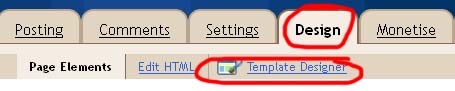
- Go to Design-> Template Designer (as shown in the figure)
Update [01/06/2012] : Select Template -> Customise in New Upgraded Blogger Interface
- Template Designer will open
- Select Advanced -> Add CSS
- Place the CSS codes in the Text area.
- Then you can see preview by clicking preview.
- Save by click on Apply to Blog
This article is very useful for Blogger beginners.This is a tutorial about how to find specific code in webPages/Blogs/Websites.You may see many
Blogger Tutorials on internet for the purpose of designing or to add gadgets to your blog,for eg: if you need to add some
meta tags inside <head> section.
You go to
Design->Edit HTML
look for <head>
find <head> and place meta tags inside it. But,
It is not easy to find a code manually.So Use
Ctrl + F to find.
Look the below picture
- Hold Ctrl on the keyboard and press F,(Ctrl+F is the shortcut to reach Find Bar in almost all browsers)
- A Find Bar will display, Type the code you want to search.
- At once that code will highlight on the Page/Blog
- Then you can edit/delete/modify highlighted code.
Please Leave Comments
This article is for absolute blogger beginners,about how to backup your blogger blog's template.This is very important thing that every blogger should beware of it. While adding or changing new features to your blog ,there may occur template crash.If you are not aware of this thing( backup template), it will affect your blogger blog's overall body language.So first you must know about backup your Blogger Blog Template.Follow the Steps
Backup Blogger Blog template
It is a simple method to backup your template,follow the steps.
- First Make sure you had Sign In your blogger account
- Go to Design->Edit HTML
- There is a link "Download Full Template" at right side,click it
The file you downloaded now is in the
.XML format,so if any crash made on your template you just upload the downloaded XML file.
Upload/Restore Blogger Template
If any problem persist to your blogger blog's template upload the XML file.
- Select Design->Edit HTML
- There is a button (Browse) below the "Download Full template" link.Click on Browse
- Choose the XML file you downloaded
- Then Click on Upload button right to Browse button.
You are done,you had studied how to backup and restore your template.