Popular Posts

Showing posts with label Feeds. Show all posts

Add Email This Post Link to Blogger

In this article you will learn how to place an email this post link or button at the bottom of each post in a Blogger Blogspot blog.

You may have noticed that some blogs give readers the option below their posts to email the article to themselves or a friend via a link or button. This affords readers yet another way to have access to your posts and a link for them to find you if they want to call back.

This email link should not be confused with the subscribe by email link which once a reader is signed up to will give them regular updates of each post you publish. This email link on the other hand only emails the reader the single post they are interested in.

There are several ways to place an email this post link on your Blogger Blogspot blog. Here are three methods known to me.

Add Email This Post to Blogger - Method 1
The easiest method. Adds an email button to the end of each post.

1. Login to Blogger if not already logged in

2. Navigate to Layout > Page Elements

3. Within the template click the Edit link on Blog Posts
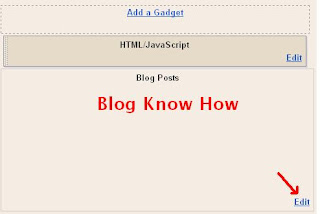
Add Email This Post Button to Blogger
4. A pop up menu will open. Under Select Items check the box labelled Show Email Post Links

5. Click Save

6. Click on View Blog and scroll to the end of your post to see the envelope button which has now appeared.


Add Email This Post to Blogger - Method 2
Another method of adding an email this post link to your blog is to add an all-in-one social bookmarking button to your Blogger Blogspot blog. All in one social bookmarking buttons are minimalist and reduce the clutter of having lots of buttons. Read the following article for information about how to add an Add This Social Bookmarking Button to your Blogger blog


Add Email This Post to Blogger - Method 3
By far the most advanced method and requires a change to your Blogger template. Yet another way to add an email this post link to your Blogger blog is to make use of your Feedburner FeedFlare if you have one. For information about getting a Feedburner FeedFlare for a Blogger feed and configuring it please refer to my article Add a Feedburner FeedFlare to a Blogger Feed

Assuming that you already have a burned feed at Feedburner (if not then read my article on how to Burn a Blogger RSS Feed at Feedburner and a FeedFlare set up follow these instructions to add an email this post link.

1. Click the My Account link at the top right corner of the Blogger navbar and then select Feedburner from the list of Google services or sign in to Feedburner directly.

2. Select your blog feed from the My Feeds List on the My Feeds page

3. From the Feedburner dashboard select the Optimize tab.

4. From the left sidebar menu select FeedFlare

5. On the FeedFlare page enable Email This by checking the box under the Site column. (Note the first column is what appears in the feed and the second column is what will appear on your blog). If you don't have your FeedFlare set up yet you can set up the FeedFlare options for both site and feed together at the same time. Follow my article about adding a Feedburner FeedFlare to Blogger for more on this.
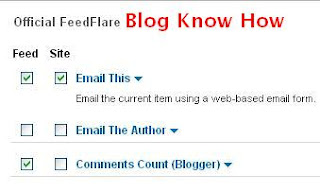
Select Email This from the Site Column on Feedburner FeedFlare page
6. Once you have checked the Email This option under Site and added any other options to the FeedFlare in the feed or site that you would like then click on Save. If this is a new FeedFlare then you will click on a button marked Activate instead.


7. After activating or saving you need to get the code to add to Blogger. Do this by clicking on the dropdown menu labelled Get the HTML code to put FeedFlare on your site and selecting Blogger from the list.

8. A pop up window entitled Adding FeedFlare to your Blogger blog will open with instructions on how to make the necessary changes to your blog. These are a bit confusing so I will break them down a bit here. Don't close this window yet as we will return

9. Login into Blogger if not already logged in

10. Navigate to Layout > Edit HTML.

11. Check the Expand Widgets Template

12. As a precaution back up you template

13. Scroll down to the following code or use CTRL + F to bring up the search tool.

<div class='post-footer'>

Note assumes you are using layout in Blogger. If you don't have this code you are likely to be using a custom template and will need to read the advanced instructions. Any problems just ask.

14. Copy the layout code in the Feedburner pop up window and paste it directly below this line <div class='post-footer'>

15. Click Save Template to save changes

16. Click View Blog to see the link in the footer of your blog posts

Add Email This Link using Feedburner FeedFlare in Blogger

In this article I have suggested three different methods to add an Email This Post link to a Blogger Blogspot blog to give readers the option of emailing their favorite articles directly to themselves. If you get stuck or have problems with any of these methods please just ask and I will try to help.


Related Articles
Add Email Subscription Links to Your Blogger Blogspot Blog
Add a Social Bookmarking Button to your Blogger Blog
Add a Feedburner FeedFlare to a Blogger Feed
Burn a Blogger RSS Feed at Feedburner
List of Blog Know How Tutorials for Blogger Blogs

Add Email Subscription Form and Links to Blogger Blogspot

Email Subscription Form as seen in a Blogger Blogspot blogIn this tutorial you will learn how to add an email subscription form to your Blogger Blogspot blog so that your visitors will have easy access to your latest updates via email. Adding an email subscription form to your blog is very easy to do and is one way to stimulate repeat visits to your blog.

Below is a step by step walkthrough of how to add an email subscription form to a Blogger blog. I have broken down the steps so that even beginners and newbies can easily follow the steps.

Why Offer the Option to Receive Updates Via Email?
If you are keen to have your visitors return to your blog then as a webmaster you can facilitate this by giving them options about how they would like to receive your updates. Receiving updates by email is just one of several options that you can offer your visitors to turn them from a one time visitor into a regular follower. Other common choices are to follow you in a reader such as Google Reader or alternatively follow you on Twitter. I have recently set up my feed to feed directly into Twitter using the Twitterfeed service so that my readers can follow me on Twitter.

How to Set Up an Email Subscription Form at Feedburner
In order to set up an email subscription link or form at Feedburner you first need to have your feed burned by Feedburner. If you are not sure how to do this please read my step by step article on burning a Blogger RSS Feed at Feedburner or follow these brief instructions

1. If you are using your Google Account click on the My Account link and choose Feedburner from the list. Alternatively go to Feedburner and sign in. If you aren't registered you can quickly create a free account using your Google Account.

2. After logging in you will be taken to the My Feeds Page. If you already have your feed burned skip to Step 3 otherwise follow these instructions to burn your feed.

If you need to burn your feed first enter the URL of your Blogger blog into the Burn a Feed Right This Instant box and click Next.

Burn a Feed Right This Instant with Feedburner
You will need to enter the title of your new feed. I suggest you use your blog title as your title. You will also be asked to choose a feed so choose the RSS Feed. You will then be taken to a success page and a message something like Congrats! Your FeedBurner feed is now live. After clicking Next you will now be prompted to customize your options. Read how to do this in my article about burning a Blogger RSS Feed at Feedburner. Once you have finished customizing your options click Next to proceed to the My Feeds Page.

3. Once you have your feed click on the link to it from the My Feeds Page. This will direct you to the Feedburner dashboard.

4. Now select the Publicize tab.

5. From the left sidebar click Email Subscriptions

6. Scroll down to the bottom of the page and click on the Activate button. If you are not sure what email address you are using for your account you can check this first.

7. You will now be taken to the Subscription Management Page.


8. Choose your language. The default is English

9. From the dropdown menu Use a Widget in select Blogger. The default is Typepad. The orange Blogger favicon will now show up.

10. To Automatically Insert the Subscribe By Email Widget into Blogger
  1. Click on the GO button next to the Blogger Widget.
  2. You will be taken to the Blogger Add Page Element Page where you can select your blog from a dropdown menu if you have more than one blog.

    Blogger Add Page Element Page to insert email subscription widget into your blog
  3. Click on the Add Widget button and your subscribe by email widget will be added to your blog.
  4. You will now be taken to the Layout > Page Elements page
  5. Reposition your widget and save any changes. By default the widget is added to the top of your Blogger sidebar.

Note:If you find that the Page Elements Page does not load properly click on View Blog and you will find that the widget has been inserted. You can then go back and reposition it.


To Manually Insert the Subscribe By Email Widget into Blogger
  1. Copy the code and navigate to the Layout > Page Elements screen in Blogger.
  2. Select Add a Gadget in the area you wish the subscribe by email widget to appear (in most cases this will be the sidebar).
  3. Choose HTML/Javascript widget
  4. Paste the widget code into the content box
  5. Click on the Save Button
  6. Reposition the widget if necessary. A good place is at the top of the right sidebar and Save.
  7. Click on View Blog to see your new email form in your blog


Add an Email Subscription Link to Blogger
Note you can also add an email subscription link to your blog. Either copy and paste the link from the Feedburner Subscription Management Page into your blog or you can automatically insert it by following the same steps as with the automatic insertion of the email subscription form. You will find the code for the link in a text box below the code for the form on the Subscription Management Page. Email subscription links are useful both in the sidebar and beneath each post.

Add Feedburner Email Subscription Link to Blogger Blogspot Blog

Check Your Subscribe By Email Form is Working Correctly
Once your subscribe by email widget is safely installed your form is ready for use. I suggest you test drive it to make sure it is performing correctly. Besides if you sign up you will have at least one subscriber right? Also you may want to regularly check who is subscribing to your blog by email by navigating to the Feedburner > Publicize page for your blog.

1. On the homepage of your blog enter your email address and click on the Subscribe button.
2. You will be take to a Feedburner Email Request screen with a captcha check for spam. Enter the sequence of alphanumeric characters into the text box.

Feedburner Email Request screen with a captcha
3. Click on the Complete Subscription Request button
4. You will now be informed that your request was successful and that you will need to click on the activation code in an email that has been sent to you.
5. Open your email program and retrieve the email and follow the activation link. You will then receive an Email Subscription Confirmed notice from Feedburner. As the notice points out you will only receive an email if you make a post so you will need to get cracking on writing your next post.

Feedburner Email Subscription Confirmed notice

In this tutorial you have learned how to add an email subscription form to a Blogger Blogspot blog so that your readers can enjoy receiving your most recents posts directly to their mailbox. Allowing visitors to sign up for your feed via email will promote your blog and can easily turn a new visitor into a regular follower. An alternative to an email subscription form is to insert a subscription link into your blog. I find a good place for an email subscription link is after each post to encourage visitors to sign up for my feed.


Related Articles
List of Blog Know How Tutorials for Blogger Blogs
Burn a Blogger RSS Feed at Feedburner

Add Outbrain Ratings Widget to Blogger

Outbrain provides a free and very stylish content recommendations and ratings widget which can be easily added to your Blogger Blogspot blog. In this tutorial I will discuss the benefits of Outbrain and also provide a step by step walkthrough of the process of adding an Outbrain widget to your Blogger blog and your Feedburner FeedFlare if you have burned your blog feed at Feedburner.

Outbrain Home Page
Benefits of Adding Outbrain to Your Blogger Blog
By adding an Outbrain content and ratings widget to your Blogger blog you will encourage visitors to record their reactions to a post they have just read. Along with features likes polls this is another good method of encouraging visitors to interact with your blog. Outbrain also makes it possible to display your most popular posts within the widget. In addition the Outbrain ratings widget may help drive more traffic to your blog when your visitors use the Recommended Posts feature which is embedded in the widget. By the same token it may also mean that the traffic doesn't stay long as visitors will be wooed away by recommended links so you will have to weigh up the benefits versus the costs for yourself. Outbrain also provides reports on widget activity

How to Add an Outbrain Ratings Widget to Blogger
1. Register at Outbrain. This is a simple sign up process that requires you to click on a confirmation email once you have requested sign up and filled out a simple form.

2. Once registered click on Get the Widget from the footer menu

3. Choose Blogger as your Blogging platform

4. Select the language of your widget if other than English which is the default

5. Click on Get the Widget button and Outbrain will automatically refer you to Blogger in a new window. Sign in to Blogger in the new browser window. Don't close the Outbrain window as we will be returning here.

Outbrain Get Widget page
6. Choose your blog from the drop down menu and click on the Add Widget button.

Add Outbrain Widget to Blogger
7. Navigate to Layout > Page Elements and reposition if necessary your new widget which will now be appearing in the sidebar of your blog. Save any changes you make.

8. Return to Outbrain in your open browser window and click on the click here link to verify your blog. You will receive a message verifying that you have claimed your blog

9. Click on the View Blog link in the menu tab section and view your new Outbrain widget in action.

Outbrain Ratings Widget as it appears at the bottom of a Blogger post


Note that once your readers start to rate your posts by clicking on them the stars will become yellow. 5 yellow stars is an excellent rating


Customizing Your Outbrain Ratings Widget
1. Return to the Outbrain window in your browser

2. Navigate to Manage Posts using the Sidebar Menu on the lefthand side

3. In the list of blogs you will see your blog listed. Click on the settings link

Outbrain Manage Blogs Screen
4. If you leave the default setting you will see recommended links appearing as pictured above in #9. If you don't want any recommendations you can set this to no.

5. If you have set up your blog with the idea of earning a little extra money you may choose to turn off sponsored recommendations. If you leave the radio button set to yes any proceeds from the sponsored links clicked on will go to charity. The charity sponsored can be selected via the drop down menu

6. Outbrain will show the most popular posts in the sidebar of your blog if this feature is enabled. To enable popular posts select the enable radio button.

7. Click on the Submit button


Adding Outbrain to Your Feedburner FeedFlare
If you already have a FeedFlare appearing at the footer of your burned Feedburner feed of your blog you can easily add Outbrain too. Check out my article on adding a Feedburner FeedFlare to Blogger if you are not sure what a FeedFlare is or how to add one to Blogger.

Go to Feedburner and choose your blog from the list of My Feeds. Select the Optimize tab and then FeedFlare from the lefthand sidebar menu. In the Personal FeedFlare section paste the following code (URL) into the text box:
http://widgets.outbrain.com/FeedFlareUnit.xml

and click on the Add New Flare button. Click on Save. Your readers will now be able to rate your blog straight from your Blogger feed.

Outbrain Troubleshooting Tips for Blogger Installation
  • When you install Outbrain on your blog resist the temptation to rate one of your posts as this vote can't be deleted once it is cast. Even when I tried uninstalling and reinstalling the widget the vote did not clear.

  • The Popular Posts feature takes a while to show any posts as it needs at least 2 visits before it will start rating the post

  • If you have other problems with Outbrain try this active Outbrain support forum for answers

In this tutorial you have learned how to install the Outbrain Ratings widget on your Blogger Blogspot blog and customize it. Also some of the benefits of the Outbrain widget were discussed along with a couple of Outbrain installation troubleshooting tips. If you have a moment let me know how you get on installing this widget. Don't forget to bookmark this post for easy reference.

Related Articles
Add a Feedburner FeedFlare to Blogger Feed

Add a Feedburner FeedFlare to Blogger Feed

If you have burned your Blogger Blogspot blog feed at Feedburner you can easily add a FeedFlare to the footer of the feed. FeedFlare helps you to distribute, inform and create a community around your content. Adding a FeedFlare to the feed of your blog allows readers to select from a range of social bookmarking links which appear at the end of each post. FeedFlare offers subscribers some easy ways to email, tag, share, and bookmark your blog content by linking them with a range of services such as Stumble Upon, Digg This, Facebook, Technorati, del.icio.us and Mixx.

It is not difficult to add a FeedFlare to your Blogger feed but it does require you to add a snippet of code to the template of your blog. Don't be put off as I will guide you through this process by providing a step by step walkthrough. This tutorial caters for all levels of technical knowledge from the newbie Blogger to the experienced Blogger.

To see a FeedFlare in action right now check out the end of each post in the Blog Know How feed


How to Add a Feed Flare to Your Blogger Feed
If you have yet to burn your Blogger feed at Feedburner please refer to my articles Blogger RSS Feeds and Feedburner and Burn Blogger RSS Feeds at Feedburner for instructions on how to burn your feed and benefits of burning your blog's feed at Feedburner.

1. Login to Feedburner with your Google Account. From the My Feeds page click on the link to your blog

2. By default you will be taken to the Analyze page so you need to select the Optimize tab from the menu

3. Select FeedFlare from the Side Menu

4. To create a simple FeedFlare check the boxes of the options you would like. At a mininum I suggest you select email and comments count (for blogger) in addition to Stumble Upon, Digg This, del.icio.us and Facebook.

5. Once you have selected the desired options you can reorder them in the Preview/Reordering box below using drag and drop to shuffle the links around. I think it is a good idea to have comments either at the beginning or the end of the list as readers are more likely to notice it in this position

6. Click on Activate. Do not close this window as we will be returning here.

7. In a new window login to Blogger if you are not already logged in and navigate to Layout > Edit HTML

8. I strongly suggest you back up your template as a precaution by downloading it to your computer

9. Use CTRL + F to bring up the toolbar and enter the following code into the search box
<div id='post-footer'>
Find Post Footer Code
10. Return to the FeedFlare page at Feedburner and select Blogger from the drop down menu at the bottom of the page to get the HTML Feedburner code. A dialog box will appear with some instructions. Copy the code found in item #1. Editing Blogger Layouts. To copy right click your mouse and choose select all to highlight the code and then right click again and choose copy

11. Paste the Feedburner code into your template directly below the line of code in your template you just located <div id='post-footer'>
Add Feedburner FeedFlare Code into Your Blogger Template
12. Click on the Save Button

13. Return to Feedburner. Immediately below your blog's title and just above the Analyze tab you will see two icons. Click on the RSS icon (left button) which will bring up your blog feed.

Feedburner feed icon
14. Scroll to the bottom of the first post and you will see your new FeedFlare in action.

FeedFlare in Blogger Feed Redirected by Feedburner

Other FeedFlare Options
For smarter looking links you may choose to customize the FeedFlare's appearance by tweaking the CSS.

To prevent stealing of your original content otherwise known as blog scraping or splogging you can add personal FeedFlares such as a permalink to a copyright notice and a permalink to you the author of the blog.


In this tutorial you have learned how to create a FeedFlare at Feedburner which appears at the bottom of each post in your Blogger blog's feed. By adding the FeedFlare to the footer of your Blogger blog you help build an online community around your content by offering your readers some choices about how they share, link to and act on the information contained in your blog

Related Articles
Blogger RSS Feeds and Feedburner
Burn Blogger RSS Feed at Feedburner

Burn Blogger RSS Feeds at Feedburner

In this tutorial I will guide you through the step by step process of burning your Blogger feed at Feedburner, updating your blog settings to reflect the new feed and adding a RSS icon to the sidebar of your blog so your visitors can subscribe to your new RSS feed. Although redirecting your blog feeds through Feedburner is relatively straightforward I will be including some tips to simplify the process. This tutorial is suitable for all levels of technical knowledge but is particularly aimed at those readers new to blogging with Blogger.

There are lots of good reasons for burning your Blogger feeds with a free service like Feedburner. Among the advantages are better feed presentation, detailed tracking statistics and access to the large choice of feed readers available. For a full discussion of the benefits of burning your Blogger blog feed at Feedburner including an explanation of Blogger RSS feeds please refer to my article Blogger RSS Feeds and Feedburner.

How to Burn Your Blogger RSS Post Feed at Feedburner

If you want to add Google Adsense at the same time as burning your feed at Feedburner I suggest that you refer to my article on Adding Google Adsense to Your Blogger Feeds as this includes an explanation on how to do this. Otherwise follow the steps below to burn your post feed at Feedburner

1. Go to Feedburner and click on the Get Started link

2. Sign in to your Google Account if not already signed in. This will take you to your Feedburner Account page.

3. Enter the name of your blog in the Burn a Feed This Instant box and click the Next button

http://yourblogname.blogspot.com
Burn a Feed This Instant
4. A message will be displayed that you have more than one feed and asking you to choose. Select the RSS radio button for the RSS feed and click next

Identify Feed Source - Choose RSS
5. Feedburner will now display the proposed Feed Title and Feed URL. Unless you have a reason to change these accept by selecting the next button


6. You will now see the confirmation screen letting you know your feed has been burned. Select the Next Button to set up Feedburner Statistics options

7. Check the I want more statistics box to give you access to additional tracking statistics. Click on the next button

Click on Add Additional Stats
8. Feedburner will now inform you that it has successfully updated the burned feed you have just created.

9. Click on the Feedburner Analyze Tab at the top of the page and you will be taken to the Analyze Feed Stats Dashboard. At this stage you will receive the message: Your feed is so new, we’re still playing with the bubble wrap. It can take about a day before you will be able to see much action on your feed

Feedburner Analayze Screen
10. Under the title of your blog's feed in this screen click on edit feed details. This will give you the new name and URL for your feed. Copy the full feed address into Notepad or similar. Care needs to be taken as you will need to copy this in two parts. The new feed URL should be something like this:

http://feeds2.feedburner.com/YourBlog

11. In a new window login to Blogger.com and navigate to the Settings > Site Feeds section of your blog

12. Click on the Advanced Mode to switch from the basic mode.

13. Make sure that the Blog Posts Feed, Blog Comment Feed and the Per Post Comment Feed are all set to Full.

Blogger Site Feed Configuration for Feedburner Redirect
14. Paste the URL address of your new Feedburner feed in the feed address box provided. This is the URL address that you copied into Notepad previously

15. If you don't already have a copyright notice in the Post Feed Footer it is a good idea to enter one. I tend to use something like the following:

Copyright Your Blog Name 2009 at yourblogname.blogspot.com

16. Click on the Save button

17. Return to Feedburner and click on the Publicize tab

18. Follow the friendly graphic link to chickletize your feed. This will provide you with the code to place an RSS icon on your blog with a link to your new burned Feedburner feed

19. Choose the large orange icon entitled "Subscribe in a Reader" as we will be placing it in the sidebar of your blog.


20. Copy the code at the bottom of the page by right clicking the mouse and then select all from the menu followed by right click the mouse and then select copy

21. Return to your blog and navigate to Layout > Page Elements

22. In the sidebar select Add a Gadget and then HTML/Javascript. Paste the code into the content box by right clicking the mouse and selecting paste

23. Enter a title if you wish. I like to use Subscribe for Free myself as for a lot of people subscriptions often mean there is a cost involved.

Add RSS Icon to Publicize Your Post Feed in Blogger
24. Save your new widget

25. Use the drag and drop feature in the sidebar to position the widget in your desired location. Click on Save

26. Click on View your Blog to see your new RSS icon in the sidebar. If you now click on the RSS icon you will see your new Feedburner post feed in action

Feedburner Chickletize your RSS Feed - RSS Icon

This tutorial has shown you how to burn your Blogger Blogspot Feed at Feedburner, update your Blogger settings to take account of the new feed URL address and add a RSS icon link to your blog's sidebar which points to your Feedburner post feed.

Related Articles
Blogger RSS Feeds and Feedburner
Add a Feedburner FeedFlare to a Blogger Feed

Blogger RSS Feeds and Feedburner

In this article you will learn about Blogger Blogspot RSS feeds and about the benefits of burning your Blogger feeds at Feedburner.

What are RSS Feeds?
Your Blogger feeds are a means of distributing your blog content to the world. Feeds make it possible to maximise exposure of your blog's content beyond a few visitors browsing your blog. Feeds can be subscribed to via a web portal, news reader, or email. Feeds allow your blog content to be packaged into all sorts of widgets and gadgets and mobile devices that can be displayed just about anywhere.

RSS stands for Really Simple Syndication. RSS is a standardized web format used to create a document containing your blog posts, blog comments or any other content on your blog you choose including images, music and video. As Blogger has built in RSS feeds, everytime you publish a post Blogger automatically adds your post to the default feeds. How much of your Blogger post that is displayed in your feed depends on whether you have chosen your feed in full or short format. To check this setting in Blogger navigate to Settings > Site Feeds of your blog.

Blogger automatically produces your blog's feed in both Atom and RSS. RSS is becoming increasingly popular as the preferred format for feeds. Both Atom and RSS were developed to enable people to receive automatic updates of their favorite blogs and websites. While the format of each is different they do pretty much the same job which is to output updated content from your blog in a format that can be easily read in a feed reader.

The URL of Default Blogger Feeds
Default Blogger Post Feeds

Atom 1.0:
http://yourblogname.blogspot.com/feeds/posts/default

RSS 2.0:
http://yourblogname.blogspot.com/feeds/posts/default?alt=rss

Default Blogger Comments Feeds

Atom 1.0:
http://yourblogname.blogspot.com/feeds/comments/default

RSS 2.0:
http://yourblogname.blogspot.com/feeds/comments/default?alt=rss

Default Blogger Label-Specific Feeds

Atom 1.0:
http://blogname.blogspot.com/feeds/comments/default/-/labelname

RSS 2.0:
http://blogname.blogspot.com/feeds/comments/default?alt=rss/-/labelname


Encourage Visitors to Subscribe to Your Feeds blogger Subscription Links Widget enabled
Whenever you see the familiar orange icon RSS icon on a website that denotes a RSS feed. By adding this RSS icon to your Blogger blog and setting up a link to your posts feed or other content visitors will be able to view your feed on click. If you have enabled the Subscription Links widget in Layout > Page Elements > Add a Gadget visitors are given the option to subscribe to both your posts and comments feeds in a reader such as Google Reader, My Yahoo or Bloglines. Alternatively you can burn your blog feeds with a free feedburning service like Feedburner.

Feed Readers Make it Easy for Readers to Keep Up-to-date
Your readers don't have to worry about manually saving your blog to their browser favorites anymore as Atom and RSS feeds make it easy to subscribe to a feed reader instead. Rather than visitors manually checking back on your site and trying to manage a bunch of bookmarks they can choose to subscribe to a reader. Subscribing in a reader means they will get up-to-the-minute content automatically without fear of missing any new entries.

Burn Your Blog Feeds with Feedburner
To make it even easier to get subscriptions to your blog it pays to burn your feeds with a feed burning service like Feedburner. The Feedburner service is now owned by Google and can accessed from your Google account. If you do intend to include Google Adsense on your feeds it is a good idea to burn your feeds. Please refer to my article Adding Google Adsense to Blogger RSS Feeds for help in setting up Google Adsense for your Blogger feeds. For assistance with burning your feed at Feedburner please see my article Burn Blogger RSS Feeds at Feedburner.

feedburner.com Home Page
By burning your blog's feeds at Feedburner you will be redirecting the Blogger default feeds to the new Feedburner feeds. When placing a link to your blog's feed visitors will have instant access to your feed. If, for example, there are 15 posts in your posts feed they will be able to browse all of these in chronological order complete with images.

You can choose to burn label feeds too if you find you have a lot of articles in one particular group. For instance if you blog is about fishing you might choose to have separate feeds for deep sea fishing and freshwater fishing.

Visitors also have the option to subscribe to any of your burned feeds in a large number of feed reader applications such as Google Reader, My Yahoo, Bloglines, Net Vibes, Newsgator to name a few. The advantage to the visitor of subscribing in a reader is that they do not have to keep visiting your blog to keep up with your latest posts. Instead they can read the most recent posts of all their favourite blogs from their reader which collects all their feed subscriptions into one central place.

Burned Feed at Feedburner - Feed Reader Choices
The option to get updates via a web-based feed reader is becoming increasingly popular with visitors. Even though the visitor may not be returning to your blog your feeds extend your blog's reach. Feedburner can provide accurate statistics about the number of subscribers to your feed and what type of reader they are using.

Feedburner Feed Count ButtonYou can also place a Feedburner Feed Count button on your blog which displays the number of these subscribers. Adding a Feedburner Feed Count button isn't a bad idea if your blog is attracting a decent readership. The purpose of adding such a button isn't so much to brag about it (although it is gratifying to see your readership climbing) but to lend some added credibility to your blog.

Why Burn a Blogger Feed at Feedburner?

Feedburner Provides Tracking Statistics of Subscribers
There are many reasons to burn your blog feeds at Feedburner but the main one is the facility to track your feeds to gain a better understanding of your blog's audience. Blog publishers who redirect their feed can monitor their growing readership.

It is useful to know how many people are opening and reading your feeds and how they're being used. Feedburner provides an easy method of tracking feeds that would be difficult to track otherwise. By redirecting your Blogger default feed to FeedBurner, important feed statistics such as the total number of subscribers, feed reader (aggregators) used, live hits, items used, uncommon uses, item views, item link clicks and item enclosure downloads for podcast can be recorded and analysed.

Feedburner Encourages Greater Reach
Attracting more readers to your blog and plugging into a wider network of eyeballs than you might have on your own account makes Feedburner an attractive option.

Feedburner Offers Improved Presentation of Your Blog Feed
Another advantage of Feedburner is that it allows for clean visual foramtting of your RSS feed for improved browser friendliness and presentation. Once burned your feed will be far more visually pleasing to readers. Improved presentation of your RSS feed is a powerful reason to begin redirecting your blog feed through Feedburner. Plus your readers can select their reader directly from the feed.

Feedburner Provides a Range of Services
By burning your blog feeds at Feedburner you get access to a range of services like Podcasting and the choice and flexibility of participating in the Feedburner Ad Network. Feedburner allows you to easily analyse, publicize, optimize and monetize your feed. Feed burning allows readers to subscribe regardless of what feed reader they happen to be using,


This article has discussed Blogger RSS feeds. It has outlined some of the benefits of burning your Blogger feeds at Feedburner. For instructions on burning your Blogger RSS feed at Feedburner please read my tutorial entitled Burn Blogger RSS Feeds at Feedburner.

Related Articles
Burn Blogger RSS Feeds at Feedburner
Add Google Adsense to Blogger RSS Feeds

Add a Recent Comments Feed to Blogger Sidebar

When you add a recent comments widget to a Blogger blog (Blogspot blog) using your Blogger comments feed you will encourage visitors to comment on your blog and hopefully improve blog traffic blog.

It only takes a couple of minutes to add a Recent Comments widget to Blogger. It is also easy since it requires no editing of your Blogger template. This Blogger tutorial assumes limited technical knowledge of Blogger and is mostly aimed at new bloggers and beginners although it is suitable for any Blogspot blogger looking to increase action on their blog.

If you would like to add a Recent Posts Feed to your Blogger website please refer to my earlier article Add a Recent Posts Feed to a Blogger Blog (Blogspot Blog)

Below I will take you through the steps of adding a feed widget to the Blogger sidebar so that the Blogger default comments feed will be displayed there. Equally you could add this widget to the footer if you prefer.

I am going to show you two different widgets to add Recent Comments to your blog. Which you choose is up to you and largely depends on how many comments you wish to display.

Method 1 - Using the Blogger Feed Widget to
Add Recent Comments Feed to Blogger

This first method is the old way to add recent comments to Blogger using the Blogger feed widget and is still my preferred method. The limitations are though that the maximum number of comments displayed is 5.

Method 2 - Alternative Method to Add Recent Comments Feed to Blogger
There is another Blogger widget that can be added to Blogger which will display up to 10 of the most recent comments on your blog. By default it shows the author's name and this can not be removed. If you are happy with this and would like more comments displayed this is a nice widget. One problem with the widget though is it will not necessarily display in the font of your blog. You will need to check this by installing it to try it out.

Add a Recent Comments Feed to the Sidebar of a Blogger Blog

  1. Login to you Blogger blog

  2. From the Dashboard go to Design > Page Elements

  3. Click on Add a Gadget in the sidebar

  4. Select the Feed widget from the list of Basic Widgets

  5. A popup dialog box will appear requesting you to configure the URL of your feed. Enter the following text into the box labelled URL Feed substituting the URL address of your blog name eg blogknowhow.blogspot.com for yourblogname:

    http://yourblogname.blogspot.com/feeds/comments/default

    Add Site Feed Widget to Blogger Sidebar and Preview Site Feed of Recent Comments
  6. Click on continue. If you have entered the address of your comments URL feed correctly Blogger will retrieve your feed and display a preview in a dialog box. The feed will include links to the last five comments made on your blog.

    Preview of Comments Feed for Blog Know How Blogger Blog
  7. Unless you want less than 5 comments to display leave show 5 as is

  8. Under Title replace the name of your blog with Recent Comments instead

  9. If you want to be able to see the date of the comment check the Items Dates box

  10. If you want to have the comment author displayed check the Item/Sources Author

  11. Unless you are worried about visitors leaving your blog there is no real need to check Open in a New Window(note this option has been added since I first wrote this tutorial so it is not in the picture)

  12. Click on Save

  13. Click on View Blog to see your new Recent Comments feed in action.


Below you can see an example of what the recent comments widget will look like. (Naturally it will be styled to suit your blog.) You can also see it operating in the sidebar of this blog.

View of Blog Know How Site with Recent Comments Feed Widget Installed
8. If you want to change where it appears in the sidebar this can be achieved by returning to Design > Page Elements and using drag and drop to position the widget into the spot of your choice on the Blogger sidebar.

Troubleshooting
If you are using a feed delivery service like FeedBurner the default comment feed URL will be being redirected by Blogger.com. In this case you will need to enter the Feedburner address of the feed which is likely to be something like this:

http://feeds2.feedburner.com/Comments/YourSiteName

Notice how Feedburner capitalizes your blog name. Check the exact address at Feedburner if you are not sure of the feed address. For more on burning your feed at Feedburner check out these articles: Blogger RSS Feeds and Feedburner and Burn Blogger RSS Feeds at Feedburner and Add a Feedburner FeedFlare to a Blogger Feed

Method 2 - Using a Contributed Gadget to Add a Recent Comments Widget to Blogger (Blogspot)

  1. Login to you Blogger blog

  2. From the Dashboard go to Design > Page Elements

  3. Click on Add a Gadget in the sidebar

  4. Click on Most Popular from the menu on the left hand side of the Add a Gadget window

  5. Select Recent Comments

  6. Change the number of comments to display according to your individual blog requirements. The Preview box will show you what your widget will look like with less than 10 comments

  7. Change the Summary Length to 100 px or leave as is if you prefer


  8. Click on Save to activate your Blogger widget

  9. Click on View Blog to see your Recent Comments Widget displayed

  10. Use drag and drop in Design > Layout to position your widget as you desire


This Blogger tutorial has demonstrated two different methods of adding a recent comments gadget to your Blogger blog (Blogspot blog) using Blogger widgets. The recent comments widget is probably best displayed in the Blogger sidebar or it can be moved to the footer if you prefer and of course depending on your blogger template.

Related Articles
List of Blog Know How Tutorials for Blogger Blogs
Add a Recent Posts Feed to a Blogger Blog
Blogger RSS Feeds and Feedburner
Burn Blogger RSS Feeds at Feedburner
Add a Feedburner FeedFlare to a Blogger Feed

Add a Recent Posts Feed to a Blogger Blog

One very simple way to increase page views of your Blogger (Blogspot) blog is to add a recent posts feed to your site. The procedure is easy and effective and does not require any template tweaking. This tutorial assumes limited technical knowledge of Blogger and is mostly aimed at new bloggers and beginners although it is suitable for any Blogspot blogger who wants to increase site traffic.

If you would like to add a recent comments feed to your Blogger (Blogspot) blog please see my tutorial Add a Recent Comments Feed to a Blogger Blog

Below I will take you through the steps of adding a widget so that your feed is displayed in your Blogger blog's sidebar. Unfortunately the maximum number of items that can be displayed in the posts feed at this point is limited to 5 due to a Blogger limitation. I have not found a hack to increase this level but when I do I will update this post.


Add a Recent Posts Feed to the Sidebar of a Blogger Blog

1. Login to you Blogger blog and navigate to Layout > Page Elements

2. Click on Add a Gadget in the sidebar and select the Feed widget

3. A popup dialog box will appear requesting you to configure the URL of your feed. Enter the following text into the box:

http://yoursitename.blogspot.com/feeds/posts/default

Be sure to substitute yoursitename for the name of your site

Add Site Feed Widget to Blogger Sidebar and Configure Site Feed

4. If you have entered the address of your post's feed correctly Blogger will retrieve your feed and display a preview in a dialog box. The feed will include links to the last five posts on your site.

5. Delete the name of your blog and type in Recent Posts instead

Add Site Feed Widget to Blogger Sidebar and Preview Site Feed of Recent Posts
6. Click on Save

7. Click on View Blog to see your new Recent Posts feed in action.

Blogger Sidebar Widget Featuring Recent Posts Feed on the Blog Know Know website
8. If you want to change where it appears in the sidebar this can be achieved by returning to Layout > Page Elements and using the drag and drop feature to position the widget.


Troubleshooting
If you are using a feed delivery service like FeedBurner your default feed URL will be being redirected by Blogger.com. In this case you will need to enter the Feedburner address of the feed which is likely to be something like this:

http://feeds2.feedburner.com/YourSiteName

Notice how Feedburner capitalizes your blog name. Check the exact address at Feedburner if you are not sure of the feed address. For more on burning your feed at Feedburner check out these articles: Blogger RSS Feeds and Feedburner and Burn Blogger RSS Feeds at Feedburner and Add a Feedburner FeedFlare to a Blogger Feed


This tutorial demonstrates how to add a recent posts feed to your Blogger (Blogspot) blog so that it can be displayed in a widget in the sidebar of your Blogger blog.

Related Articles
Add a Recent Comments Feed to a Blogger Blog
Blogger RSS Feeds and Feedburner
Burn Blogger RSS Feeds at Feedburner
Add a Feedburner FeedFlare to a Blogger Feed

10 Tips to Build Blogger Blogspot Site Traffic

This article discusses 10 easy ways Blogger (Blogspot) Bloggers can build site traffic and in many cases improve SEO - search engine optimization. By implementing these steps you will improve the likelihood of your site ranking more highly in search engine results of major search engine players Google, Yahoo and MSN and as a result increase the number of visitors accessing your site.

10 Easy SEO Tips for Blogspot Bloggers to Improve Search Engine Rankings

1. Make Your Title Tags Search Engine Friendly
One of the most important tweaks necessary for Blogspot Blogs is the adjustment of the title tags of your website because Blogger.com by default has not optimized these for search engines. To prove this point navigate to an individual post on your blog and you will see that the blogname appears first in the title bar at the top of your browser followed by the post name. As search engines place greater value on the first words of an entry this puts your site at a disadvantage in search engine results. Fortunately it is easy to reverse the blog name and the post name with a simple tweak. For instructions on how to change the order of these title tags please refer to my article entitled Adjust Blogger Title Tags to Improve SEO

Reversed order of Blogname and Post Name Improves Search Engine Results

2. Create Search Engine Friendly Permalinks
Blogger automatically generates a permalink based on the title of your post each time you make a post. For this reason it is important to craft your title carefully. Permalinks are sometimes less than ideal especially if you have a long title. Take for example the following permalink for one of my posts:

http://blogknowhow.blogspot.com/2009/02/improved-permalinks-for-blogger-posts.html

You will see that it is search engine friendly in that in contains 2 keywords blogger and permalinks. However you may be surprised to know that How to Create Search Engine Friendly Permalinks for Blogger Posts is actually the title of this post not Improved Permalinks for Blogger Posts. I have initially used a title that is keyword rich and then after publishing gone back and entered a more descriptive title. No matter how many times I change the title the original permalink remains. If I had entered the second title straight away I may have ended up with the following permalink:

http://blogknowhow.blogspot.com/2009/02/how-to-create-search-engine-friendly.html


Not very pretty is it? And as you can see the whole point of the post is lost.

For more information on crafting permalinks please refer to my article How to Create Search Engine Friendly Permalinks for Blogger Posts


3. Add a Social Networking Button to Your Blog
By adding a Social Bookmarking button to your website you will enable visitors to your blog to create links to popular social bookmarking sites such as Google, Technorati, Facebook, MySpace, Digg, Stumble Upon, Reddit, Delicious, Furl, Yahoo etc. This means that visitors to your site will be able share these links with others thereby helping you attract more traffic to your site and encourage return visits.

Another benefit of a social bookmarking button is that you will be able to identify visitor trends and social bookmarking behaviour on your site. For more information on how to add a free Add This Social Bookmarking button to your Blogger blog please refer to my article Add a Social Bookmarking Button to Your Blog.

Add a Free Add This Social Bookmarking Button to Your Blogspot Blog

4. Submit a Sitemap of Your Blog to Popular Search Engines
If attracting traffic to your site is important to you then it is imperative that you ensure that your Blogger (Blogspot) blog is properly indexed by popular search engines such as Google, Yahoo and MSN. One way to expedite this is to submit a sitemap to each of three major search engines. Please refer to my tutorials on website submission, authenticating your site and adding your site feed to Yahoo Site Explorer, Google Webmaster Tools and MSN Tools.

Google - Submit Your Blogspot Blog Sitemap to Google

Yahoo - Submit Your Blogspot Blog to Yahoo

MSN - Submit Blogger Sitemap to MSN Live Search

Also take a look at my tutorial on submitting your blog to major search engines

5. Build Quality Links
If you want to rank highly in Google and other search engines then you need to generate quality in-bound links. That doesn't mean exchanging links with everything and everyone as I see some new webmasters do. A few quality links from authoritative sites will boost your page rankings quickly and are far superior to a bunch of links from low ranking sites.

There are several good ways to generate links to your blog. One easy way is to to submit your site to blog directories. For more information on recommended blog directories please see my article Submit Your Blogger Blog to Blog Directories. Another way to cultivate in-bound links is to submit your best articles to article directories. A third possibility is to actively participate in forums and on other related blogs where commenting affords you the option of adding a link to your site.

I would recommend linking to DMOZ (Open Directory Project). Care needs to be taken to submit your site to the correct subject area. Becoming listed can take awhile so patience is needed.


6. Write Quality Content and Post Frequently
If you have read any articles on the subject of Blogging and SEO you will no doubt have observed writers emphasising the importance of quality content. I can't stress enough how much return visits depend on providing inducements to visitors to come back. If your site content is well written and informative half the battle is won. Make sure you post frequently so that visitors can see the value of subscribing in a reader. Take some care with the presentation of your content and images as this will present a professional image. Avoid common pitfalls like bad grammar and spelling mistakes which stand out like a sore toe and detract from a visitor's overall positive experience of your site.

One leading professional blogger Yaro Starak recommends the use of pillar articles. These are articles that don't change over time and continue to attract visitors. The best pillar articles explain some concept, provide definitions, give advice or present some argument. Your site needs to have at least 5 pillar articles and more if you can manage it. Pillar articles need to be more than 500 words long, crafted to generate interest and provide a welcome resource to your visitors.

7. Ensure Your Content is Keyword Rich
Apart from the quality of your content there is the question of keyword density. The more keyword rich your posts are the greater the likelihood they will appear higher in search engine results. This means it is worth the effort of crafting your content in such a way that you make use of important keywords and keyword phrases frequently used. Don't go overboard however as Google is smart enough to recognise if your pages are littered with keywords and nothing much else. A useful free SEO tool to help you optimise your site using keywords and labels is Google Adwords. Another good tool to help you quickly craft keyword rich material is Live Keyword Analysis which assesses the keyword density of keywords and keyword phrases of any post you paste into the analysis box.

When writing posts make sure your opening sentence describes what the article is about and contains your keywords and keyword phrases. It is important that your first sentence is keyword rich as search engines like Google give more emphasis to content at the beginning of the post. Also it is worth including a short ending statement about the content of the post as there is some evidence that Google also places value on the content at the end of the post.

8. Manage Your Feeds Carefully
Feeds help your visitors find your site so they need to be managed carefully in order to make the most of them. Your site feeds are an important way to create backlinks too. Backlinks from authoritative sites are highly valuable and can boost your page ranking. For information about showing backlinks please refer to the Blogger Help Article About Backlinks

Ensure you have your RSS feed icons clearly visible for visitors to see. The most superior positioning of the feed icons on your site is in the header. Watch out for coming tutorials on how to improve positioning of RSS feed links.

You can redirect your feed to a feedburning service like Feedburner and then add a chicklet to your site (orange RSS feed button) so that the feed is instantly available on click. Please refer to my tutorials about Blogger feeds:Burn a Blogger RSS Feed at Feedburner and Blogger RSS Feeds and Feedburner. To add a FeedFlare to your burned feed check out my tutorial.

If you haven't burnt your feed you can try adding a Subscription Links widget to a sidebar too to encourage visitors to subscribe to your site in popular on-line readers such as Google Reader. You will find the Subscription Links widget available under the list of gadgets.

Blogger Subscription Links Widget installed on Blog Know How
Display your most recent posts by configuring a feed widget. Under Layout > Page Elements add a feed gadget to a sidebar. Enter the URL of the default feed of your site which will be:

http://yoursitename.blogspot.com/feeds/posts/default

Enter Recent Posts in the title and then Save. For more information about adding a posts feed widget to a sidebar please refer to my article Add a Recent Posts Feed to a Blogger Blog

You can do the same for comments if you wish to have a list of recent comments displayed in your sidebar. In this case you would enter:

http://yoursitename.blogspot.com/feeds/comments/default


For more in depth coverage about adding a comments feed to your sidebar please see my article Add a Recent Comments Feed to a Blogger Sidebar

Ensure you set up your site feeds to show the full text. To check this navigate to Settings > Site Feeds and select yes from the dropdown box for all three feeds.

Consider having a feed specifically for a popular label if it contains 20 or more posts.


9. Optimize Your Use of Images
Chances are you don't give a thought to images when you insert them into your posts but images can be optimized by careful use of filenames and the alt attribute. When naming images avoid long names. Instead give your images distinctive filenames rather than something generic like 00045.jpg which has no meaning.

The alt attribute allows you to specify what text is displayed when a visitor's mouse hovers over an image. The alt attribute also gets displayed if the image is not available for some reason. By optimizing your alt attributes you are increasing the likelihood of your images appearing in Google Image Searches.

Optimizing your alt attributes is easy. Every time you insert an image into a post look for the alt attribute which will be empty by default

style="DISPLAY: block; MARGIN: 0px auto 10px; WIDTH: 320px; CURSOR: hand; HEIGHT: 122px; TEXT-ALIGN: center" alt="" src="http://3.bp.blogspot.com/abcdeefgBxA/4560/sidebar-add-this-bookmark-button.JPG" border="0" />

Fill in the alt attribute with a useful description of your image

style="DISPLAY: block; MARGIN: 0px auto 10px; WIDTH: 320px; CURSOR: hand; HEIGHT: 122px; TEXT-ALIGN: center" alt="Blog Know How Sidebar Showing Add This Bookmark Button" src="http://3.bp.blogspot.com/abcdeefgBxA/4560/sidebar-add-this-bookmark-button.JPG" border="0" />

Depending on the subject of your site you can gain a lot of traffic from the images you post on your site. The more unique the content of your site the greater the likelihood that your traffic will stem from images. Without going overboard ensure you have a good mix of images to support your articles.


10. Take Advantage of Web Analytics Services
Having implemented some strategies to improve crawling and indexing of your site by search engine giants Google, Yahoo and MSN chances are you will want to see how these changes have impacted on the traffic reaching your site. Web Analytics programs are a valuable tool for gaining insight into visitor behaviour and trends. The kind of information that a program like Google Analytics will provide is:
how users reach and behave on your site

the most popular content on your site

the impact of optimizations you make to your site (e.g. by how much did changing the order of title tags improve traffic from search engines?)


To integrate Google Analytics into your Blogger (Blogspot) blog please refer to my articles Track Visitors to Your Blogger Blog and Add Google Analytics to Blogger Blog

This article has discussed 10 easy ways to build site traffic and improve SEO for Blogger (Blogspot) Bloggers by addressing the following areas: feeds, images, social bookmarking, title tags, permalinks, content, analytics, submitting your blog to search engines.

Related Articles
Blogger Guide to Google Adsense Placement
Avoid 6 Common Blogger Mistakes
Add Meta Tags to Blogger for Better SEO
List of Blog Know How Tutorials for Blogger Blogs